Send an ETA Text: Set Up in Five Seconds for Small Trade Shops
Send ETA updates with Apple Maps or Google Maps, compare live sharing with a plain text, and get field and office workflow advice for small trade shops.

Send an ETA Text: Set Up in Five Seconds for Small Trade Shops

The fastest way to send an ETA is to start navigation and use Apple Maps’ Share ETA or Google Maps’ Share trip progress, both of which update automatically as you drive. If you only need a quick one-off estimate, a short text with the time and your location works just as well. For contracting shops juggling multiple jobs, software like MEPflow can send arrival notifications automatically so nobody has to remember.
TL;DR:
- Apple Maps updates shared arrival times after major traffic delays or detours, supports driving, cycling, and walking, and allows voice sharing through Siri.
- Google Maps links work without a recipient’s Google account and remain active for up to 24 hours; account holders can extend location sharing.
- Remove a contact from a pinned place’s sharing settings, or a stopped Apple Maps share may restart on your next visit.
- Check In requires iOS 17 or later and can alert contacts after stalled travel, while live ETA sharing better serves customer arrival updates.
- Use a text for one estimate without location tracking; shops with recurring arrivals can automate customer notices instead of sending each update manually.
Table of Contents
- How to share ETA in Apple Maps (iPhone): quick steps and tips
- How to share ETA in Google Maps (Android and iPhone): step-by-step
- Check In and arrival confirmations on iPhone (when you need arrival proof)
- Manage, stop, and automate ETA sharing (pinned places and privacy controls)
- When to send a plain ETA text instead of live sharing
- Troubleshooting common issues (Share ETA missing, contacts not showing, no updates)
- Field-practitioner perspective: using ETA messages on the job
- Author perspective: quick recommendations for contractors and office managers
- How MEPflow helps with arrival notifications and customer texting
- FAQ
- Sources
How to share ETA in Apple Maps (iPhone): quick steps and tips
Apple Maps makes live ETA sharing a few taps once you’re navigating to a destination. Here’s the sequence:
- Open Apple Maps and search for your destination.
- Tap Go to start turn-by-turn directions.
- Open the route card at the bottom of the screen.
- Tap Share ETA.
- Choose a suggested contact or tap Open Contacts to pick someone else.
Once shared, your ETA updates automatically if traffic or a detour causes a major delay, so the recipient always sees a current estimate rather than a stale one. The feature works for driving, cycling, and walking directions, which matters if a technician is finishing the last leg of a job on foot.
For hands-free use, say “Hey Siri, share my ETA” while driving. This is worth building into any pre-drive habit for techs who shouldn’t be tapping a phone screen between jobs.
Sharing stops automatically when you reach your destination, but you can also end it early from the route card if plans change. One caveat: if the destination is a pinned place you’ve shared with someone before, Maps may resume sharing with them automatically on your next trip there. That behavior gets its own fix in the pinned-places section below.
Pro Tip: Set up Share ETA before pulling out of the parking lot, not while merging onto a highway. It takes five seconds stationary and zero seconds you don’t have once you’re moving.
How to share ETA in Google Maps (Android and iPhone): step-by-step
Google Maps uses a similar flow, with a feature it calls Share trip progress rather than Share ETA, and it works the same way on both Android and iPhone.
- Enter your destination and tap Directions, then start navigation.
- Swipe up on the information card at the bottom of the screen.
- Tap Share trip progress.
- Choose a profile to share with, or generate a link for someone outside your contacts.
- Tap Share.
If the recipient doesn’t use Google Maps or doesn’t have a Google account, you can still get them a live location link they can open in any browser. For people without an account, Google’s separate location-sharing links work for up to 24 hours and can be extended for account holders, which is useful if a dispatcher needs visibility for longer than a single drive.
Sharing in Google Maps stops automatically once you arrive at your destination or when you end navigation, whichever comes first. There’s no need to manually turn it off after a normal trip, though you can cancel it early from the same card if your plans change mid-route.
Check In and arrival confirmations on iPhone (when you need arrival proof)
Live ETA sharing and Check In solve different problems. Share ETA shows ongoing movement toward a destination; Check In is built to confirm you got somewhere safely, and it can escalate if you stop making progress.
- Start Check In from the Messages app by tapping the plus icon and selecting Check In, then choosing a contact.
- Check In requires iOS 17 or later to function.
- If you stop moving toward your destination for an unusual length of time, Check In can prompt you before alerting your contact.
- If Check In ends unexpectedly or you don’t respond to a travel-stall prompt, your contact can see your last known location, route, and battery level.
For most job-related arrivals, Share ETA is the better fit since customers usually want to track approach, not receive a safety alert. Check In fits personal situations better, like confirming a late-night drive home ended safely.
Manage, stop, and automate ETA sharing (pinned places and privacy controls)
Stopping a live share mid-trip is simple on either platform: open the route card and tap the option to stop sharing. What catches people off guard is pinned-place automation.
- Stopping a share during one trip does not remove the contact from a pinned place, so automatic sharing can restart the next time you head there.
- To stop it permanently, open the pinned place in Maps and remove the contact from its sharing settings directly.
- Review Location, Contacts, and Maps permissions periodically in your phone’s settings to confirm who still has standing access.
Pinned-place sharing is convenient for a home or a regular job site, but it’s easy to forget who’s still on the list months later.
Pro Tip: If you share ETA with a customer for a one-time job, don’t pin that address. Pinning is for places you’ll return to on purpose, not addresses you’re unlikely to visit again.
When to send a plain ETA text instead of live sharing
Live sharing is great for ongoing visibility, but it’s not always the right tool. A plain text with a time and destination is often the better choice when you want to share one estimate without opening a continuous location feed.
- Use a plain text when privacy matters more than live tracking, since it shares nothing beyond the message itself.
- Three examples: “On my way, should be there by 2:15,” “Running 10 minutes behind, see you around 3:40,” or “Just finishing up the last stop, ETA to your place is 11:50.”
- For a business with recurring arrivals, an integrated arrival notification feature usually beats both options since it sends the update without anyone having to type it.
Troubleshooting common issues (Share ETA missing, contacts not showing, no updates)
A missing Share ETA option or a contact that won’t show up usually traces back to permissions or a weak GPS signal rather than a broken app.
- Check that Location Services is enabled for Maps and that Contacts access is allowed, since both are required for the share menu to populate names.
- Confirm Messages has permission to send texts if you’re sharing through a contact rather than a link.
- If the app shows “Searching for GPS” and won’t update, you’re likely in a tunnel, parking structure, or area with poor signal; step outside or toward a window and restart navigation.
- As a fallback, generate a Google Maps location link or send a plain ETA text so the recipient still gets an update while you troubleshoot.
Toggling airplane mode on and off for a few seconds can also force a stuck GPS or network connection to reset.
Field-practitioner perspective: using ETA messages on the job
For a small plumbing, HVAC, or electrical shop, the most reliable routine is simple: the technician starts navigation, shares ETA with the office or the customer, and the office watches the share instead of calling to ask where someone is. That one habit removes a surprising amount of back-and-forth on a busy day.

Integrated customer texting and arrival notifications cut down on manual messaging even further, since the office doesn’t have to relay a tech’s ETA by hand every time a customer calls in. Standardize the message format across the team (same phrasing, same level of detail) and run a dry test with one or two customers before rolling it out shop-wide, so everyone sees what the customer actually receives.
Author perspective: quick recommendations for contractors and office managers

Live sharing and plain texts both have a place, and treating them as interchangeable is where most shops go wrong. Share ETA or Share trip progress fits customer-facing updates where ongoing visibility builds trust, especially for first-time customers who’ve never met your technician. A plain text fits internal coordination between office and field, where a single time estimate is all anyone needs and continuous tracking would be overkill.
The detail that gets missed most often is testing. A dispatcher who assumes Share ETA works the same on every phone will eventually hit a permissions issue mid-dispatch on the one day it matters. Pick one method as your default, write down the steps, and have someone run it once before it’s load-bearing for a real customer appointment.
— Jonathan
How MEPflow helps with arrival notifications and customer texting
We built MEPflow around the same problem this guide walks through: getting an accurate arrival time to the right person without anyone having to remember to send it.
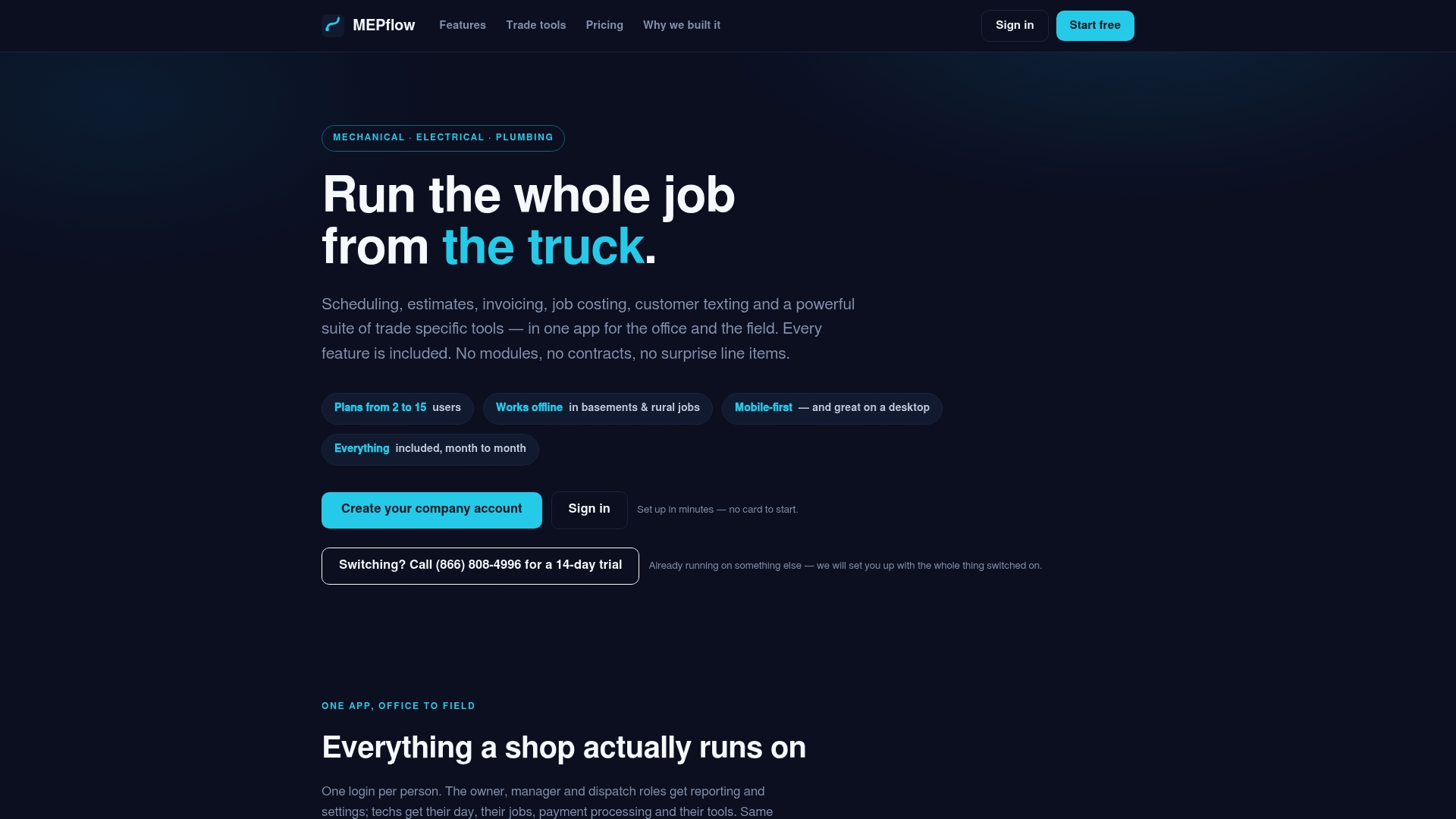
Our platform includes integrated customer texting and arrival notifications as part of the field side of the app, so a technician’s progress toward a job can reach the customer automatically without relying on manual messages every time. It’s designed to work primarily on mobile devices and functions offline, syncing job status and messages when signal returns, with the same data available on the desktop office side for dispatchers tracking multiple trucks at once. We built it as tradespeople with experience in plumbing, electrical, and HVAC work, running it on our own trucks before anyone else saw it, for shops running small to mid-sized fleets.
If your office is still relying on phone calls to confirm arrivals, pairing automated texting with a service like Callspace can also catch after-hours calls while your team is on the road.
- Create your company account to see arrival notifications in action.
- Check pricing for plans based on crew size, with every feature included on every tier.
- Call 866-808-4996 to book a 14-day trial if you want the full feature set before deciding.
FAQ
How do I send an ETA through text messages?
On iPhone, start navigation in Apple Maps, open the route card, tap Share ETA, and pick a contact. On Android or iPhone with Google Maps, start navigation, swipe up the info card, and tap Share trip progress to send a live link instead of typing a manual estimate.
What does ETA mean in a text message?
ETA stands for estimated time of arrival, the point in time you expect to reach a destination. In a plain text it’s usually just a stated time, while in Apple Maps or Google Maps it’s a live figure that updates automatically as conditions change.
How can I tell if someone shared their ETA with me?
You’ll receive a message or notification containing a map link that shows the sender’s live location and estimated arrival time, which updates as they travel. If you don’t see updates after accepting the share, check that you have a data connection and that the link hasn’t expired.
What happens when I share my ETA with someone on iPhone?
The recipient can see your Live Location on a map along with your route and estimated arrival time, updating in real time until you arrive or stop the share. Sharing ends automatically at your destination, though pinned places can cause it to restart on a future trip unless you remove that contact from the pinned place.
Should I use Apple Check In instead of Share ETA?
Check In is better for confirming you arrived safely and can alert a contact if your travel stalls, while Share ETA is built for ongoing visibility during the trip itself. For customer-facing arrival updates, Share ETA or Share trip progress is the more natural fit.
Sources
- Share your estimated time of arrival in Maps on iPhone - Apple Support
- Share your real-time location with others in Google Maps - Android - Google Maps Help
- How to share your ETA in Google Maps or Apple Maps - Popular Science
Recommended
Where to next
- See what MEPflow doesScheduling, estimates, dispatch, invoicing and job costing in one app.
- Create your company accountSet your shop up in a few minutes. No card to start.
- QR Codes for Equipment: Keep Scanning Offline in Small Trade ShopsMore from the MEPflow blog
- Mobile Field Service Software for 2–30 Truck Shops: Test OfflineMore from the MEPflow blog